USB
Device guide · 8 min read
Use USB Drive to move files between the M1 and a computer.
Open USB Drive
USB Drive presents the M1 microSD card to a connected computer as removable storage.
- Insert a microSD card and make sure the M1 recognizes it.
- Connect a data-capable USB-C cable.
- Open USB Drive.
- Wait for the removable drive to appear.
- Copy files into the matching feature folders.
- Allow each copy to finish.
While USB Drive is open
Do not remove the card, format it, power off, or start a function that writes to it.
Place files correctly
| Content | Folder |
|---|---|
| Sub-GHz | subghz/ |
| RFID | rfid/ |
| NFC profiles | nfc/ |
| NFC dictionaries | nfc/system/ |
| NFC recovery | nfc/recover/ |
| Infrared | infrared/ |
| Universal IR database | infrared/db/ |
| Wi-Fi | wifi/ |
| BLE | ble/ |
| Update images | Release-specified location |
Disconnect safely
- Finish transfers and close open files.
- Use Eject or Safely Remove on the computer.
- Wait for the safe-removal message.
- Press Back on M1.
- Confirm the home file browser opens the card again.
Troubleshooting
| Problem | What to do |
|---|---|
| Drive does not appear | Use a data cable, another port, and verify About SD Card. |
| Card busy | Eject, leave USB Drive, then reopen the file browser. |
| Files missing | Verify exact feature folder and supported extension. |
| Computer requests format | Cancel and diagnose the filesystem before erasing. |
Visual guide
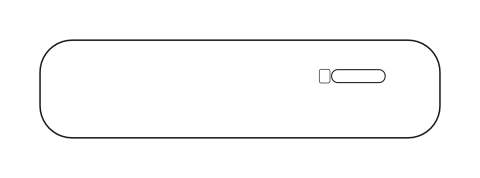
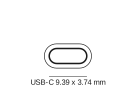
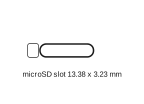
USB Drive ownership
Open USB Drive→Use on computer→Eject→Return to M1
Need help? Email support@monstatek.com and include the firmware version and screen name.