Sub-GHz
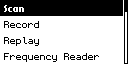
Scan supported signals, record RAW activity, replay saved captures, identify frequencies, and select the transmit output.
Before you start
For legal and authorized use only. Use Sub-GHz tools only with signals and equipment you own or are authorized to test. Regional frequency and duty-cycle rules apply.
Insert a writable microSD card before Record or Replay.
Sub-GHz menu
| Item | Purpose |
|---|---|
| Scan | Listen for and decode supported signals. |
| Record | Capture pulse timing as RAW data. |
| Replay | Open and transmit a saved capture. |
| Frequency Reader | Locate a strong nearby carrier. |
| Remap Tx pin | Choose the built-in or supported external transmit path. |
Scan
Scan listens for nearby Sub-GHz activity and attempts to identify supported signal protocols and their decoded values.
- Confirm the displayed frequency and modulation.
- Press Center to listen.
- Activate the authorized remote briefly near the M1.
- Watch the signal strength and decoded result.
- Use Left or Right where the screen offers another frequency or result.
- Press Center on Stop, or Back, to end reception.
| Field | Meaning |
|---|---|
| Frequency | Tuned receive frequency. |
| Modulation | OOK, ASK, or FSK receive mode. |
| Protocol | Decoder that recognized the signal. |
| Bits | Decoded payload length. |
| Key / Payload | Captured value; treat it as credential data. |
| RSSI | Received strength; less-negative values are stronger. |
Move closer to the transmitter and try reading it again. If the M1 still cannot identify the signal, use Read RAW to record a short sample instead. Some signal types cannot be decoded by the M1.
Record
Record saves the timing of a Sub-GHz signal as a RAW capture when decoded protocol data is not required or available.
- Use Left and Right on Ready to select a fixed frequency; modulation changes automatically for the range.
- Press Center on Start.
- Operate the authorized transmitter briefly.
- Press Center or Back to stop and finalize the temporary capture.
- Press Center to replay once. After completion, hold Center to repeat only while held.
- Press Down on Save to name and keep the recording.
- Press Left or Back from Complete to discard and return to Ready.
If buffer or sample overflow appears, discard the capture, shorten the recording, reduce unrelated RF activity, and retry.
Replay
Replay transmits a previously saved Sub-GHz capture using its stored frequency and modulation settings.
- Select a compatible saved file.
- Review its frequency and modulation.
- Point the M1 or connected transmitter toward the receiver.
- Press Center to transmit once. Hold it to repeat only when you have permission to do so.
- Release Center to stop repeating and press Back to return.
Repeated replay can desynchronize an authorized rolling-code remote without operating the receiver.
Frequency Reader
Frequency Reader helps identify the frequency of a strong nearby Sub-GHz transmission.
- Keep the source close to the M1.
- Press the authorized transmitter briefly.
- Wait for the detected frequency to stabilize.
- Repeat from a slightly different position if it jumps or disappears.
- Record the stable result and press Back.
This identifies a strong carrier, not protocol compatibility or permission to transmit.
Remap Tx pin
Remap Tx pin selects whether Sub-GHz transmissions use the built-in output or a supported external transmitter connection.
- Disconnect external hardware before wiring.
- Use Left and Right to select the displayed output.
- Use the built-in path for normal operation.
- Select an external path only with the matching M1 pinout and module instructions.
- Press Back after confirming the selection.
Confirm ground, voltage, connector orientation, and current before connecting a module.
Troubleshooting
| Problem | What to do |
|---|---|
| No signal | Move closer, verify the source battery, and try the expected frequency. |
| No decode | Try the correct modulation or make a short RAW recording. |
| Record will not start | Check mount state, free space, and write access. |
| Replay fails | Verify file, frequency, output selection, compatibility, and regional permission. |
| Tuning failed | Return and choose another supported frequency. |
Visual guide
Need help? Email support@monstatek.com and include the firmware version and screen name.