NFC
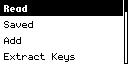
Read supported 13.56 MHz cards, use saved data, create profiles, recover MIFARE keys, and manage dictionaries.
Before you start
NFC dumps, UIDs, keys, passwords, NDEF records, and transit data can be sensitive. Use only your cards or cards covered by explicit authorization.
Place one card flat against the NFC antenna area. Remove other contactless cards.
Read
Read detects an NFC card, identifies its family, and retrieves the information available for that card type.
- Place one card against the antenna.
- Open Read and hold it still.
- Keep the card still while the M1 reads its pages, blocks, sectors, or applications.
- Review card family, UID, and completion state.
- Press Center for the actions valid for this result.
- Press Back to stop or return.
| Action | When it appears and what to do |
|---|---|
| Save | Usable result: name it and save under nfc/. |
| Save Partial | Incomplete MIFARE Classic data: save only if missing sectors are understood. |
| Emulate | Supported full data is available; present M1 to the authorized reader and press Back to stop. |
| Emulate UID | Only identity-level emulation is available. |
| Write | Compatible NTAG21x or MIFARE Classic result: align writable media and keep it still. |
| Unlock | Compatible protected Type 2 tag: follow the AUTHLIM precautions below. |
| Info | Open captured UID, NDEF, memory, sector, application, signature, or transit details. |
- A complete MIFARE Classic read covers every expected readable sector.
- A partial result may contain UID and some sectors but is not a complete backup.
- Type 2 and NTAG results can include pages, NDEF, signature, and protection state.
- DESFire results expose card and discovered application information; protected content may remain unavailable.
- Unknown cards may yield an identity without application data.
Saved
Saved opens NFC profiles stored on the microSD card and shows the actions supported by each profile.
- Select a saved NFC file.
- Review its family and UID.
- Press Center for its applicable actions.
- Use Emulate or Emulate UID exactly as labeled.
- Use Edit UID only when changing stored identity is intentional.
- Use Write or Unlock only when offered.
- Open Info, or choose Rename or Delete to manage the file.
Emulate means the saved data supports the full-emulation path. Emulate UID means identity only.
Add a card profile
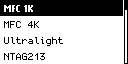
Add creates a new saved NFC profile using the memory layout and UID format of the selected card family.
| Item | What it creates |
|---|---|
| MFC 1K | A MIFARE Classic 1K profile with an entered or generated UID. |
| MFC 4K | A MIFARE Classic 4K profile with an entered or generated UID. |
| Ultralight | A MIFARE Ultralight profile with an entered or generated UID. |
| NTAG213 | An NTAG213 profile with the matching memory layout. |
| NTAG215 | An NTAG215 profile with the matching memory layout. |
| NTAG216 | An NTAG216 profile with the matching memory layout. |
- Select the exact profile.
- Choose Enter UID for a known valid UID or Generate UID for a new identity.
- Check every hexadecimal byte.
- Press Center on Save.
- Enter a unique filename.
- Open the profile from Saved and review Info.
Creating a profile does not copy protected keys, balances, permissions, or account access.
Extract Keys
Extract Keys captures supported MIFARE Classic authentication exchanges for key-recovery work.
- Insert a writable microSD card.
- Read the explanation and press Center on Start.
- Hold the M1 near the reader while it captures the authentication exchange.
- Wait for Authentication data captured, or press Back to stop.
- Save the recovery artifact under nfc/recover/ when offered.
- Use only recovered, validated keys in a later Read; a nonce capture does not guarantee a recovered key.
Reader-authentication capture can expose access-control secrets. Obtain written authorization and handle files like passwords.
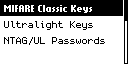
Tools — MIFARE Classic Keys
MIFARE Classic Keys manages the six-byte keys used automatically when reading Classic cards.
- Review System and Your keys counts. System keys are read-only.
- Press Center on Add.
- Enter exactly 12 hexadecimal characters for the six-byte key.
- Save; duplicate built-in or user keys are reported without another copy.
- Press Right on List to browse the keys you added.
- Select a user key and press Center.
- Confirm Delete only for the intended user key.
The combined dictionaries are used automatically during MIFARE Classic Read.
Tools — Ultralight Keys
Ultralight Keys manages 16-byte keys for supported MIFARE Ultralight C workflows.
- Review system and user counts.
- Select Add Key.
- Enter exactly 32 hexadecimal characters for the 16-byte Ultralight C key.
- Save and verify the count.
- Select Your Keys to browse the keys you added.
- Press Center on Delete for the intended key.
Ultralight C keys can be stored, but full 3DES authentication may not be available during Read.
Tools — NTAG/UL Passwords
NTAG/UL Passwords manages four-byte passwords and PACK values used with compatible protected Type 2 tags.
- Review system and user-password counts.
- Select Add Password.
- Enter the four-byte password as eight hexadecimal characters and provide PACK when requested.
- Save and verify the count.
- Open Your Passwords to browse owner entries.
- Select and confirm Delete only for the intended password.
The same dictionary is used by the compatible Type 2 Unlock workflow.
Unlock a protected tag
Unlock authenticates to a compatible protected Type 2 tag using a known password or an available dictionary.
- Read the compatible protected tag first.
- Choose Unlock.
- Select Enter Password for one known four-byte password. An incorrect attempt may consume the tag’s authentication limit.
- Dictionary appears only when AUTHLIM is 0; otherwise it is hidden.
- Keep the tag still during authentication and automatic re-read.
- On Unlocked, press Center on View.
- Press Back during a running attempt to cancel.
Do not guess passwords on a limited authentication counter. Use one verified password or stop.
Troubleshooting
| Problem | What to do |
|---|---|
| Card not detected | Remove other cards, reposition, and keep the target still. |
| Classic read partial | Add authorized keys and read again. |
| Dictionary error | Check matching files under nfc/system/ and the card filesystem. |
| Write unavailable | The family or captured data is not eligible for the current write path. |
| Unlock missing | The tag is unsupported, not detected as protected, or lacks required protection data. |
| Password rejected | Stop before more attempts; verify PWD and PACK from an authorized source. |
Visual guide
Need help? Email support@monstatek.com and include the firmware version and screen name.