RFID
Use the M1 to read supported low-frequency cards and fobs, save credentials for later use, emulate saved credentials, or write to compatible cards.
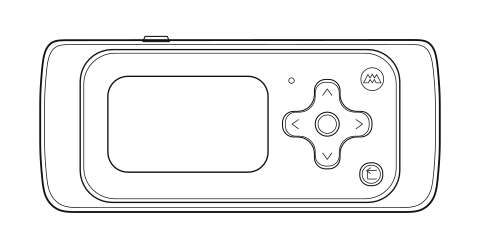
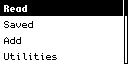
RFID at a glance
Low-frequency RFID credentials transmit a short identifier when they enter a reader’s magnetic field. After reading a credential, the M1 lets you save, emulate, write, or inspect it.
Read
Identify a supported card or fob and display its decoded data.
Main Menu → RFID → ReadSaved
Open stored records to emulate, write, edit, rename, delete, or inspect them.
Main Menu → RFID → SavedAdd
Create a record by choosing its protocol and entering the exact bytes.
Main Menu → RFID → AddUtilities
Read ISO FDX-B animal identification tags at 134.2 kHz.
Main Menu → RFID → UtilitiesRead and save a credential
Start with one card or fob. Keep other RFID credentials away from the M1 while it reads.
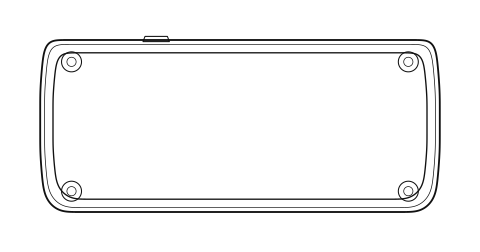
Start at the center of the rear panel.
Place a flat card against the back. For a small fob, move it slowly across the highlighted area and rotate it if the M1 does not detect it.
 RFID
RFIDOpen Read
Select Read. The M1 starts listening immediately; no separate Start command is required.
Hold the credential in place
Keep it still while the reading animation is on screen. A tone confirms detection.
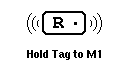
Review the result
Check the protocol and decoded identifier. The values below are an example; your credential will be different.
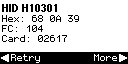
Save, emulate, or write
Press Right for More. Choose Save to keep a file, Emulate to send the credential to a reader, or Write for compatible writable media.
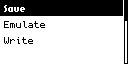
Select Save, enter a recognizable filename, and confirm. The M1 stores the record in rfid/ on the microSD card.
Use a saved credential
Saved opens RFID records from the microSD card. Select a file, then choose the action that matches your task.
Emulate
Present the saved credential to a reader. Hold the M1 in place; press Back to stop.
Write
Copy the record to compatible writable media. Keep the tag aligned until the result appears.
Edit
Replace the credential bytes. The entry must match the exact length required by its protocol.
Rename
Give the file a new recognizable name. It remains in the rfid folder.
Delete
Remove the selected file after confirming the filename.
Info
Review the protocol and stored fields without transmitting.
Add RFID data manually
Use Add when you already know the credential data. Choose the protocol first, then enter exactly the number of hexadecimal bytes that protocol expects.
- Select the protocol.Choose the exact protocol named by the source system.
- Enter the bytes.Use hexadecimal characters 0–9 and A–F. The M1 rejects missing, extra, or invalid bytes.
- Review the result.The standard result screen opens with Save, Emulate, and Write. A manually added record is not saved automatically.
- Save and verify.Name the file, then open Saved → Info to confirm the protocol and value.
 134.2 kHz
Read an FDX-B animal tag
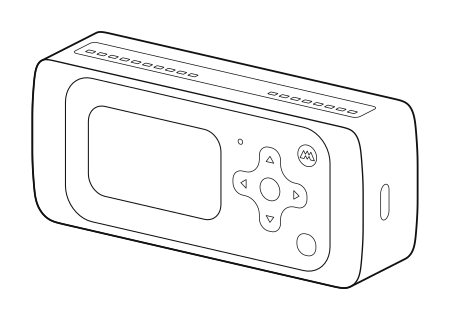
This mode tunes the M1 for ISO FDX-B animal identification tags. It displays the decoded country or manufacturer code and national identification number.
- Move the M1 slowly over the likely tag location.
- Pause when the M1 starts detecting the tag.
- Hold position until the identification data appears.
- Press Right for the available Save, Emulate, or Write actions, or Back to finish.
Try a different angle and scan the area again. Tag orientation, depth, and position all affect detection.
Protocols and troubleshooting
Normal Read listens at 125 kHz across the supported protocol set. FDX-B uses its dedicated 134.2 kHz utility.
Supported formats
EM4100 · EM4100/32 · EM4100/16 · HID H10301 · Pyramid · Kantech IoProxXSF · AWID · Securakey RadioKey · Jablotron · ISO FDX-B · HID Prox · HID Extended · Keri · Honeywell Nexwatch
If a task does not complete
- Nothing detected
- Remove other tags, move the credential across the rear panel, and try another orientation.
- Saved is empty
- Insert the microSD card and confirm the files are in
rfid/. - Edit is rejected
- Enter the exact byte count for the selected protocol.
- Write fails
- Check that the destination is compatible, writable, correctly aligned, and not locked.
Need help? Email support@monstatek.com and include the firmware version and screen name.