Getting Started
Learn about the M1 controls, navigate through menus, enter text, and understand common screen labels.
Before you begin
Charge the M1 before a long session. Insert a compatible microSD card if you plan to save captures, credentials, card images, BLE records, or infrared data.
Use read, transmit, emulate, write, capture, network, USB, and GPIO functions only on equipment you own or are explicitly authorized to test.
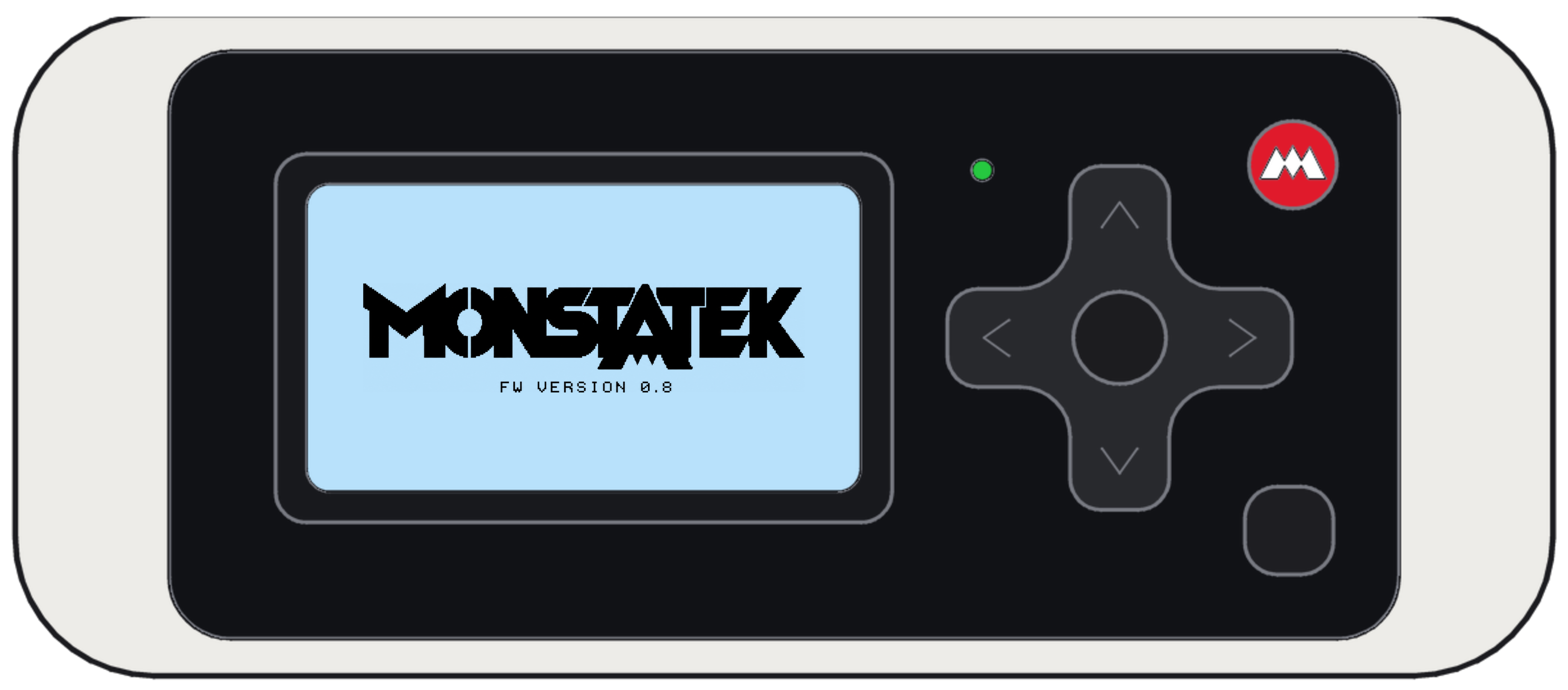
Physical controls
| Control | In menus | Inside a function |
|---|---|---|
| Up | Previous item. | Move through lists or change the selected value when shown. |
| Down | Next item. | Move through lists, change a value, or use the action shown at the bottom of the screen. |
| Left | Change a value where arrows appear. | Previous page/value, rescan, or the labeled lower-left action. |
| Right | Change a value where arrows appear. | Next page/value, confirm, or the labeled lower-right action. |
| Center | Open the highlighted item. | Start, stop, select, save, send, or run the labeled action. |
| Back | Return one menu level. | Cancel, stop safely, or return to the preceding screen. |
Main menu
Press Center from the home screen to open the nine-item main menu.
| Order | Category | Functions |
|---|---|---|
| 1 | Sub-GHz | Scan, Record, Replay, Frequency Reader, Remap Tx pin |
| 2 | RFID | Read, Saved, Add, Utilities |
| 3 | NFC | Read, Saved, Add, Extract Keys, Tools |
| 4 | Infrared | Universal Remotes, Learn, Replay, Remap Tx pin |
| 5 | USB | USB Drive |
| 6 | GPIO | GPIO Control, 3.3V power, 5V power, USB-UART bridge |
| 7 | Wi-Fi | Networks, Deauth Client, MonstaShark, Handshake, Beacon, Channel Survey |
| 8 | Bluetooth | Scan Devices, Signal Meter, GATT Explorer, Saved |
| 9 | Settings | Storage, Power, Firmware update, ESP32 update, About |
Use the virtual keyboard
- Use the directional buttons to move the cursor.
- Press Center to enter the highlighted character.
- Use the on-screen delete control to remove the previous character.
- Choose Save only after checking the complete name or hexadecimal value.
- Press Back to cancel without applying the entry.
Keys, passwords, UIDs, and GATT values require exact byte lengths. Use only 0–9 and A–F; an odd number of characters is not a complete byte.
Use the file browser
- Press Left on the home screen.
- Use Up and Down to select a folder or file.
- Press Center to open it.
- For a supported file, choose the available Run, Rename, or Delete action.
- Check the filename before renaming or deleting it. Press Back to leave without changing the file.
Do not remove the microSD card, disconnect USB, or power off during save, rename, delete, format, capture, or update operations.
Read the screen
| Element | Meaning |
|---|---|
| Highlighted row | Center opens this item. |
| Left/right arrows | The value or page can be changed. |
| Black action bar | Shows the physical button and available action. |
| Progress or counters | The function is active; use its displayed Stop or Back behavior. |
| Saved / Complete | The operation ended; verify the file or result. |
| Failed / Error | Stop and use that guide’s troubleshooting section before retrying. |
Visual guide
Need help? Email support@monstatek.com and include the firmware version and screen name.